Transparent backgrounds: when your design needs a PNG
Last updated October 15, 2026
Why a PNG with a transparent background prints only the design while a JPEG prints a rectangle, which products care, how to export one, and what the editor can remove for you.
Why the file type matters
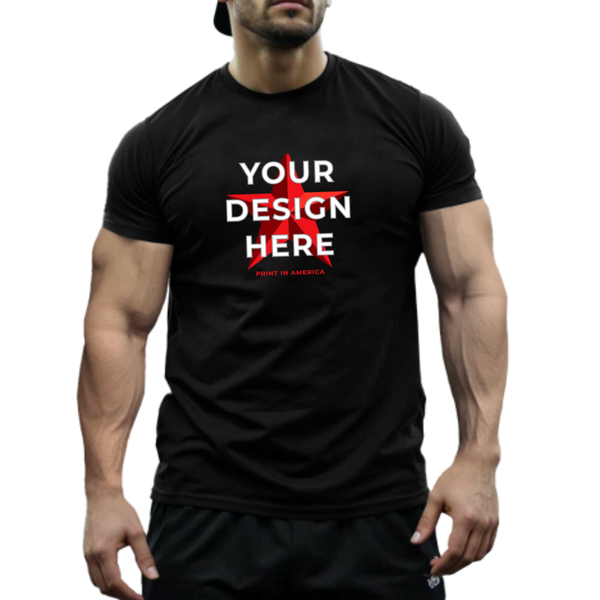
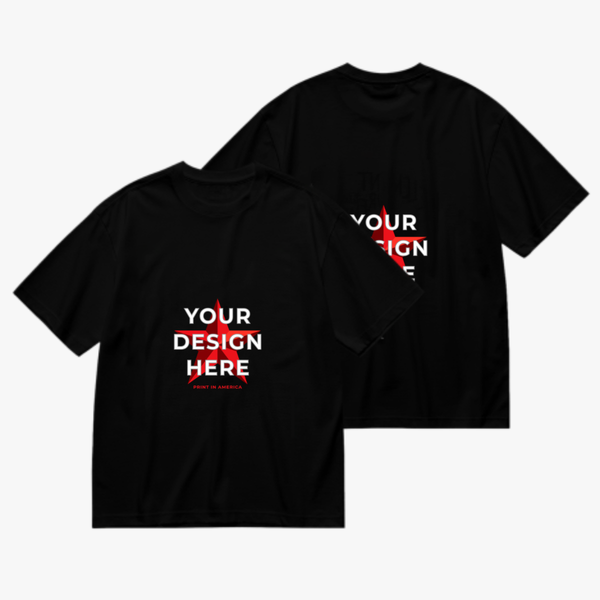
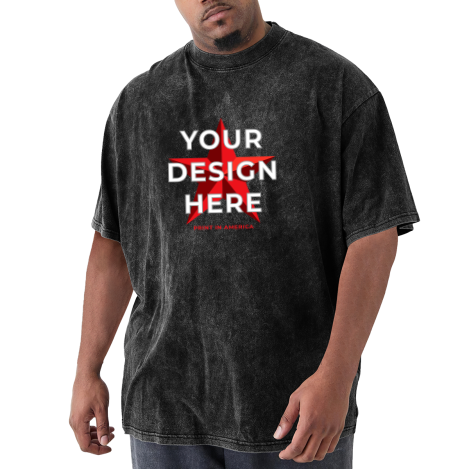
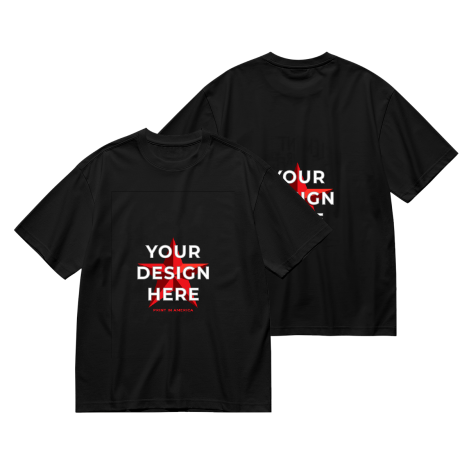
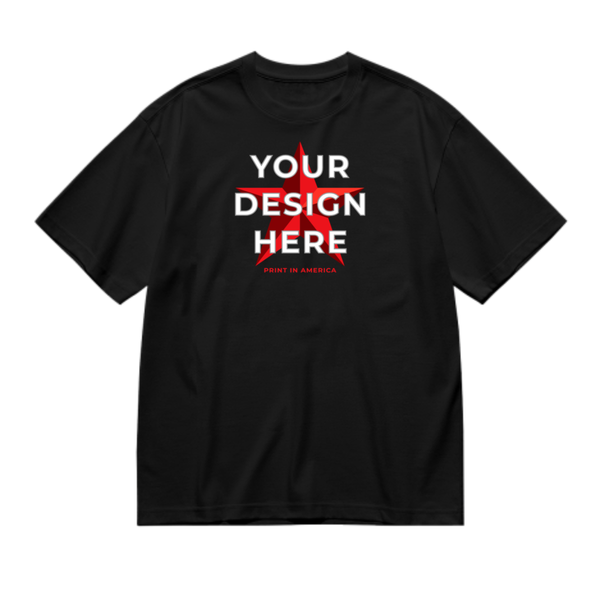
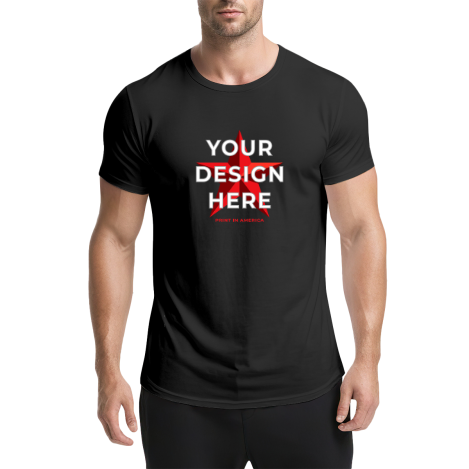
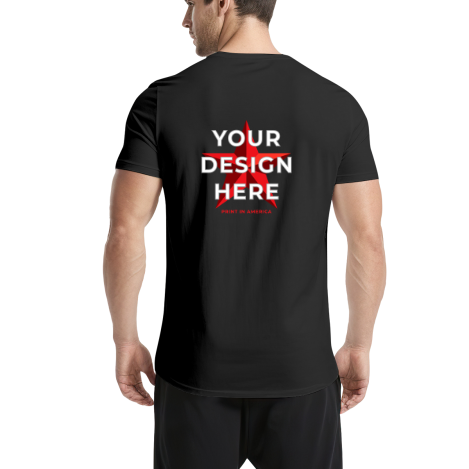
A JPEG always has a background. Put a logo saved as a JPEG on a black T-shirt and the white box around it prints too. A PNG can carry transparency, so only the design itself prints and the product shows around it.
That matters most on apparel, drinkware, metal and anything colored. For a photo that fills the whole product, such as a blanket, canvas or flag, a JPEG is fine, because there is no background to show.
Exporting a transparent PNG
- Design tools (Photoshop, Affinity, Canva, Figma, Procreate, GIMP): hide or delete the background layer, then export as PNG with transparency on.
- Check the result on a dark surface before uploading; a checkerboard in the export preview means the background is clear.
- Keep the export at the design's full size; the pixel rules in the resolution guide apply to the design, not the empty area around it.
When you only have a JPEG
The editor's Remove background tool clears a plain background of one color, which covers most logos on white. A photo or a busy background needs a design tool to cut out first.
Dark garments
Garments printed by heat transfer get a white base layer under your design, so colors stay true on black, navy and every shade between. The base follows the design's shape; a transparent PNG is what makes that shape clean.